Software desarrollado por

Login
To enter GONG, you only need to open a web browser with an internet connection and type in the domain where your GONG instance is hosted.
The details required to log in are the username and password, which must be created beforehand by an administrator of your installation.
GONG Sections
Upon accessing the system, you will see the GONG header, which is present throughout the entire system and displays, in the form of buttons, the sections you have access to, with the Home section highlighted.

- GONG Home section, which includes general summaries of all the organization's projects, tracking of general indicators, reports to funders, tasks, etc.
- Financial management of the organization's staff, linking them to the organization's projects and funds, both in terms of budget and expenses.
- Project and programme management: Formulation and monitoring for different donors from a technical, financial, and documentary standpoint, useful both internally and for reporting to funders, with automatic generation of multiple reports and summaries, and task tracking.
- Financial management of the organization, its branches, and its partner organizations/counterparts in other countries, from the standpoint of budgeting, expense control, and bank transactions.
- Document management for the organization.
- Tool administration, which allows GONG to be adapted both in terms of information and the organization's working methods.
- Link to log out of the system.
In addition to this, at the top right and left, there are links to the glossary of terms, GONG help, more information, and access to your user account management: name, email, and password.
Home
The content of the home page consists of:
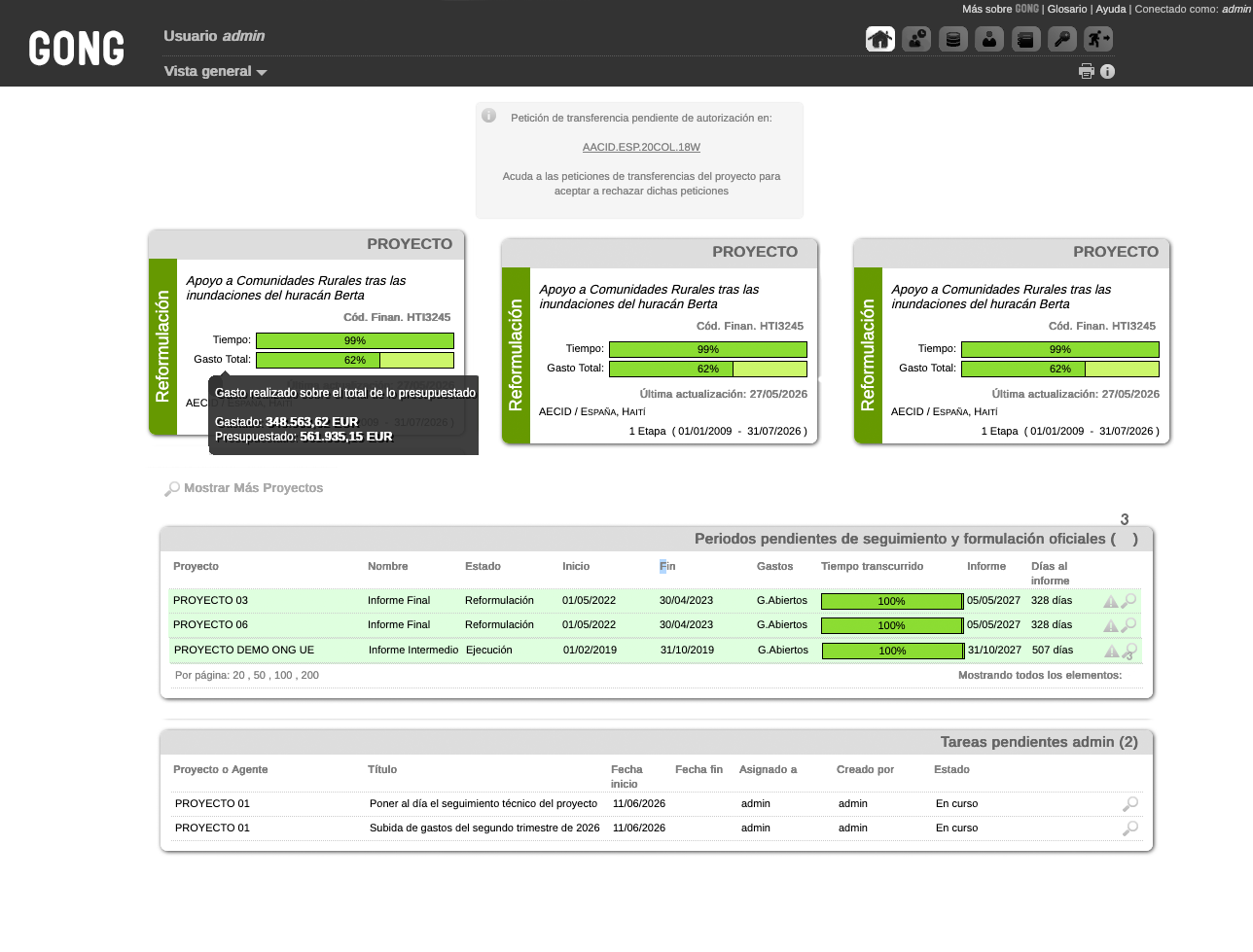
Notifications of transfer requests from projects, shown only to those responsible for managing them.
The last three summary cards for the projects the logged-in user has access to.
- Project name
- Current status
- Title
And two indicators:
- Time elapsed since the start and time remaining
- Spending versus budget
Below these summary cards there is a link labeled "Show more projects" to access additional summary cards for projects linked to your user account.
The next section of the home page is a box showing the pending reports configured for each project, allowing you to keep track of them.
Finally, there is a box showing the various tasks that have been assigned to your user from the different projects.